

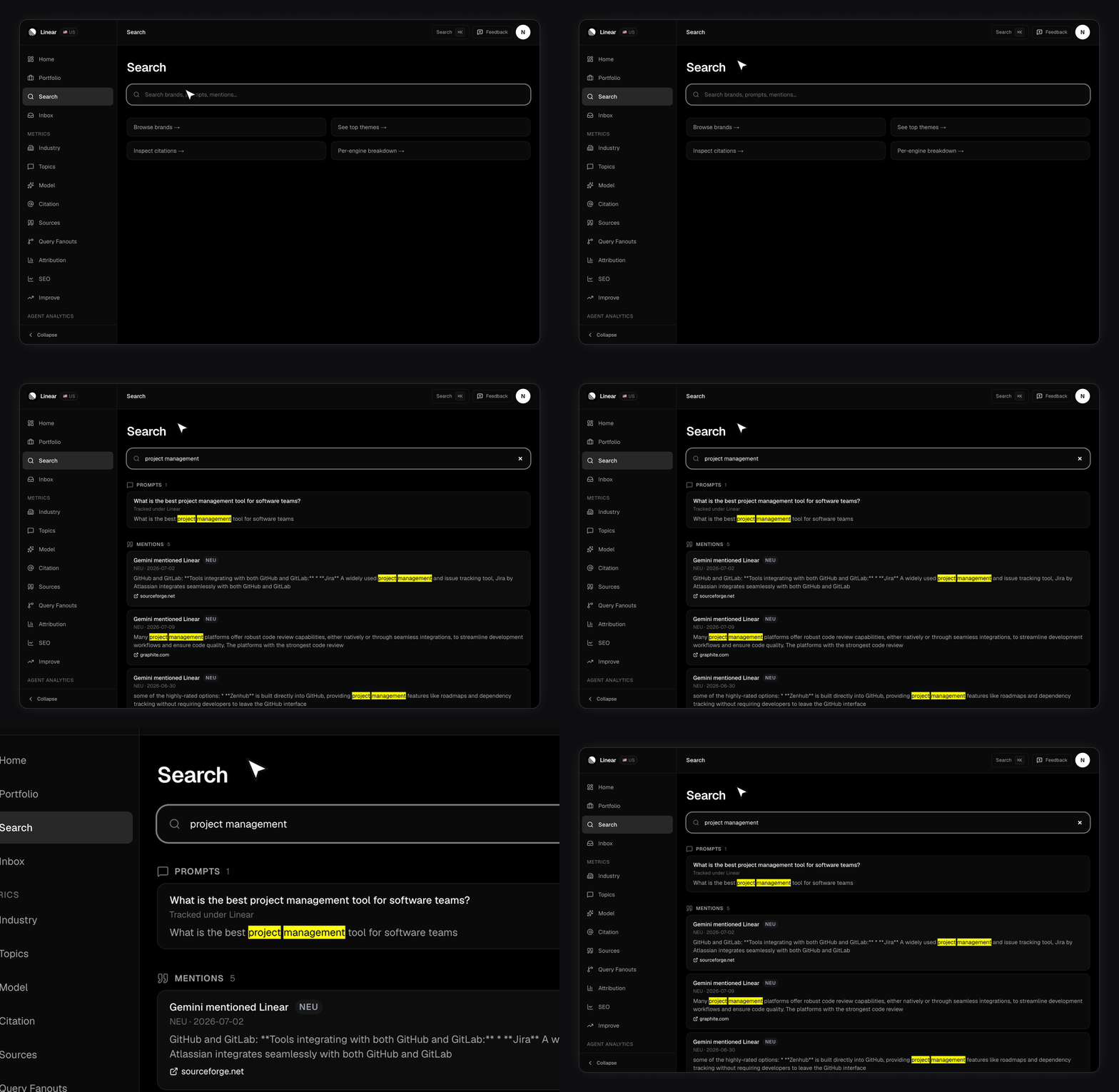
What can you search?
Four buckets, each rendered as its own section of results.
Every bucket is filtered to brands you currently track. Stop tracking a brand and its prompts, mentions, and cited URLs leave search with it.
Brand name outranks domain, which outranks slug. On mentions, the answer snippet outranks the prompt, because that’s usually the text you’re hunting for.
Citations are grouped by URL, not listed per mention. Each row carries a
×N chip counting how many of your mentions cite that page. Clicking the row opens the page itself in a new tab.
How does matching work?
A new mention is searchable the moment it’s written, so you’re never reading a stale index. Prompts and mentions match on word variations, so “integrations” finds “integration” and “pricing” finds “priced”. Brand names, domains, and slugs match as written, with a little room for typos — “stipe” still finds Stripe. An exact brand-name hit is pulled to the top rather than sitting below a mention that happens to use the same word. Matched words come back highlighted, which is why parts of a result snippet are marked.Is there a keyboard shortcut?
Yes, but it opens something else. ⌘K (Ctrl-K on Windows) opens the command palette, which jumps to pages, actions, and brands. It does not search prompts, mentions, or citations. That keyboard shortcut is the only way to open the palette now — the global topbar that used to carry a search chip is gone. The Search page has no shortcut of its own. The palette does list it under Pages, though, so ⌘K then “Search” jumps you here. Sources is listed there too. Once you’re on the page, the input is focused for you and takes four keys.
Results catch up with you a moment after you stop typing, so a fast typist only pays for one search.
Where do results take you?
Brands open that brand’s overview. A prompt opens that brand’s Tracking questions tab, a mention its Mentions tab. Citations open the cited page itself, in a new tab. A result puts you on the right tab, not on the exact row, so scan the tab once you land. To chase a specific cited URL instead, Citations is the faster route.Limits worth knowing
- Search needs a couple of characters to run, and very long queries are trimmed.
- Each section shows its strongest matches rather than everything it found.
- The count next to a section heading is the number of results returned, not the number of matches that exist. A section showing 5 means “at least 5”.
What isn’t searchable
Topics and labels, competitor lists, industry rankings, alert history in your Inbox, agent and crawler traffic, Search Console keywords, and anything on the public site. Those surfaces have their own filters. Before you type, the page shows four shortcut cards instead of results: your brand, top themes, citations, and the per-engine breakdown. They’re navigation, not search.Recent searches
The chips above the quick links are your last five queries that returned something. They’re kept in your browser’s local storage, not on your account, so they don’t follow you to another device and Clear wipes them for good. A query that returned nothing is never saved.Related
- Citations — the full view of which URLs AI engines cite for you.
- Setting up your prompts — what the Prompts bucket is searching over.
- SEO — the Search Console side, which this page is not.