

When does something arrive?
Only after a scan. Each time a scheduled scan writes a new daily snapshot for a brand, FixAEO checks your active rules against it. Rules that trip record an event, and that event is the card you see here. So an empty Inbox usually means no scan has run since you created the rule. The Inbox needs a plan with scheduled scans behind it. Cadence per plan is on Plans and limits. A rule also stays quiet for the cooldown you set on it, so a brand that moves every day won’t fill this page with the same card.Reading a card
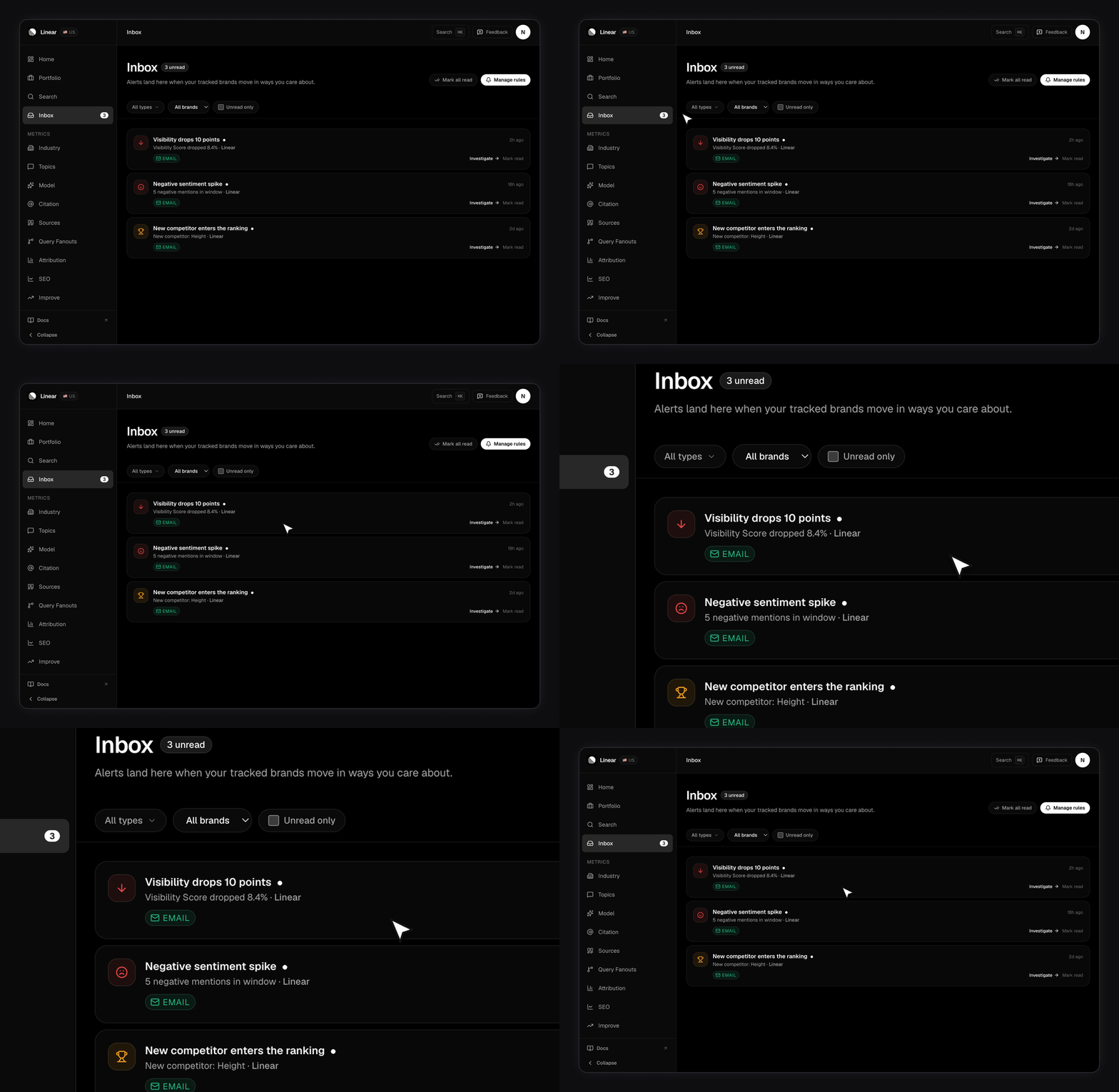
Each card carries the rule’s name, a one-line summary, the brand it’s about, and how long ago it fired. Unread cards get a dot and a tinted border. The summary carries the figure that tripped the rule. A drop or rise card reads “Visibility Score dropped 22%”, a sentiment card “4 negative mentions in window”, a new-competitor card names the brand that appeared, and a surge card names the rival and how far it climbed. The alert email and the webhook payload carry the same event with the before and after numbers. Along the bottom sit delivery chips — email, slack, webhook — one per channel that actually delivered. A failed channel adds a red delivery error chip. Delivery is recorded per channel, so a Slack outage doesn’t hide the fact that the email went out. Two actions: Investigate opens that brand’s trends section, and Mark read clears the dot. Clicking the brand name does both.Filtering the list
Three controls, pinned at the top of the list so they stay reachable.- Type — all types, drops, rises, sentiment, new competitor, competitor surge.
- Brand — only shown when you track more than one brand.
- Unread only — a checkbox.
How does the unread badge work?
The number next to Inbox in the sidebar counts events you haven’t marked read. It updates on its own while the app is open, and the same count drives the badge in the mobile nav and the chip beside the page title. Mark all read clears every unread event on your account at once, ignoring the filters you have set, and tells you how many it cleared. Re-marking a read event keeps its original timestamp, so the history stays in the order things actually happened.Why is my Inbox empty?
The page tells you which of three situations you’re in.No alert rules yet
No alert rules yet
You have no rules at all, so nothing can fire. The button takes you to Alerts to create one.
No matching fires
No matching fires
Rules exist and events exist, but your current filter combination excludes all of them. Clear filters resets type, brand, and unread in one click.
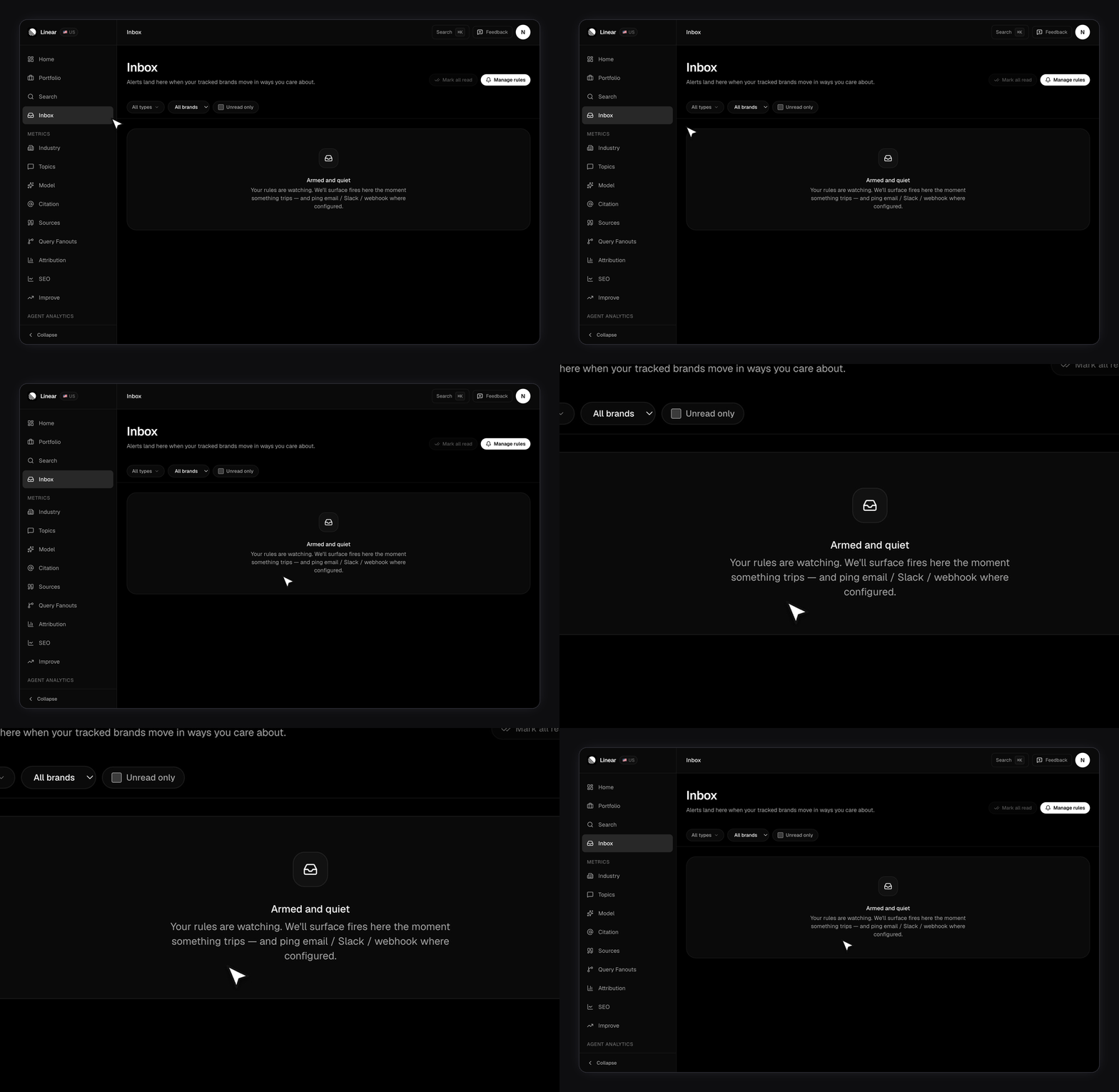
Armed and quiet
Armed and quiet
Rules exist, no filters are set, and nothing has tripped. This is the normal healthy state. Check that your brand is actually scanning if it lasts for weeks.
History and retention
Events stay indefinitely. Nothing prunes them on a schedule, and there’s no retention setting to change. Deleting an alert rule stops it firing immediately but leaves its past events in place, so your history stays readable after you retire a rule. Deleting your account removes every event with it.Related
- Alerts — creating the rules that fill this page, and picking delivery channels.
- Email notifications — the emails FixAEO sends, and how to turn each category off.
- Understanding your dashboard — where Investigate drops you to see what happened.
- Visibility Score — the metric behind the drop and rise rules.