

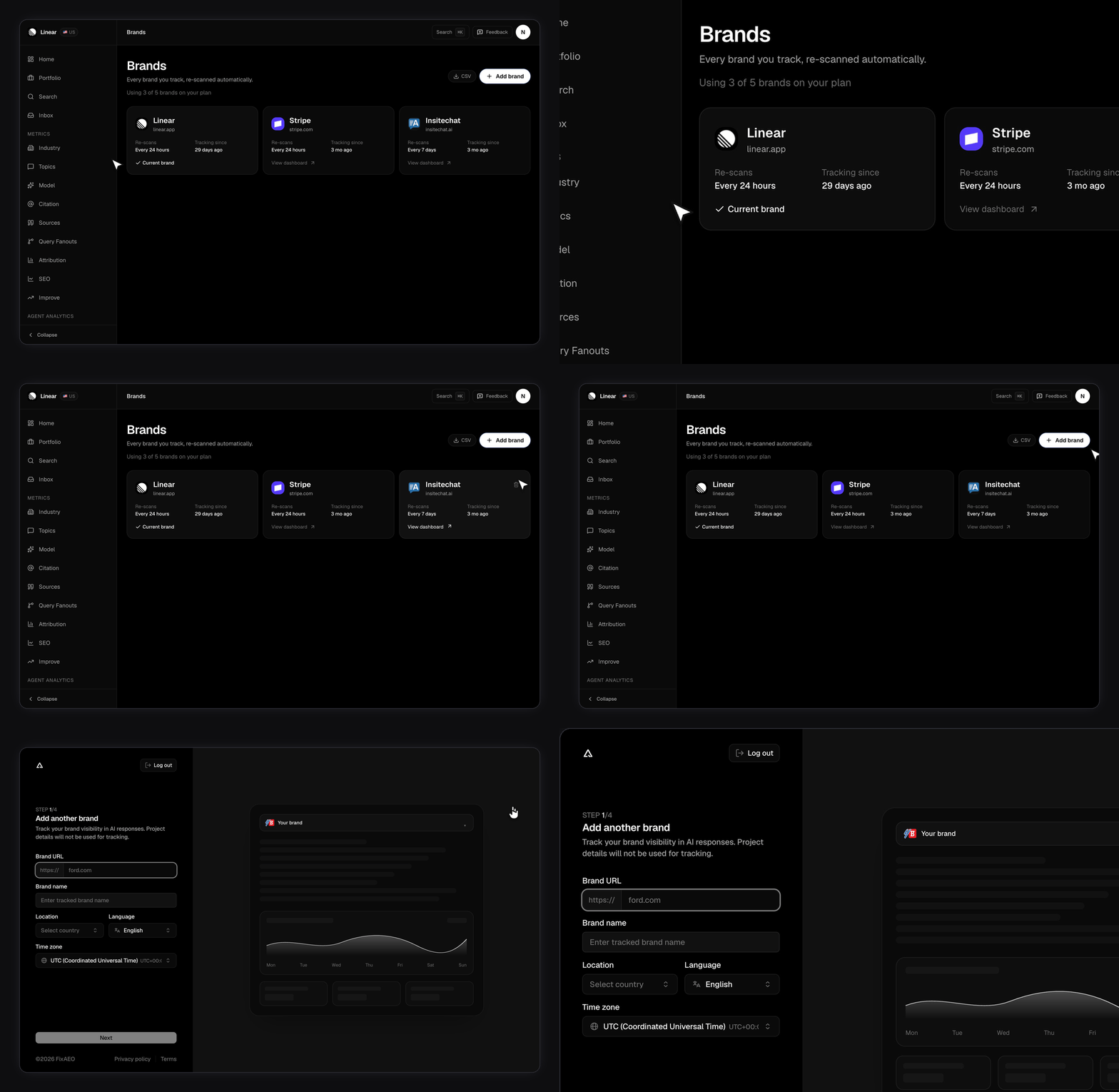
Adding a brand
Every brand goes through the same setup wizard, including your second and third.1
Open Brands
It’s in the sidebar when you track two or more brands, and also when you track one and your plan has room for another — that’s your path to adding the second. If one brand is your cap, the link is hidden and the page redirects to that brand instead.
2
Click Add brand
This opens the setup wizard on a blank form. Your existing brand’s draft isn’t carried over.
3
Work through the wizard
Same flow as your first brand — domain, AI-drafted profile, topics, prompts — then the results screen. Adding a brand skips the “how did you hear about us” step, so it’s four steps instead of five.
Running the wizard is what makes a brand scan. It sets the brand’s scan region and its prompt set in one go, and a brand needs both before there’s anything to measure. That’s why there’s no quick “just add a domain” shortcut.
Switching between brands
The sidebar cell at the top shows the brand you’re looking at. It’s a link to that brand’s overview page rather than a switcher. Two ways to switch: open the one you want from Brands, or click a chip in the Your other brands row on your dashboard. Most analytics pages also accept a?slug= in the URL, so a link to one brand’s view is shareable.
Removing a brand
Hover a brand card on the Brands page and click the trash icon. The confirm dialog asks you to type the brand name, and the Stop tracking button stays disabled until what you type matches. Capitalization and stray spaces don’t matter. Stop tracking is what the button does — your past data stays and you can add the same brand back later. Removing a brand frees a brand slot and the prompts attached to it.How the brand cap and prompt pool interact
These are two separate limits and they pull against each other. Brands are capped per account. Prompts are capped per account too, in a shared pool across every brand you track. Adding a brand doesn’t add prompts. So on Lite, with 2 brands and 15 prompts, you’re deciding how to split 15 questions across two businesses. Nine and six is a normal split. Twelve and three is fine too. What you can’t do is run 15 on each. Plan the split before you add the second brand. Each brand’s Prompts panel shows how much of the pool is in use — see Setting up your prompts.Where do you compare brands?
The Portfolio page, which appears in the sidebar once you track two or more. It opens with four account-wide numbers: brands tracked, average visibility, total mentions, and positive sentiment share. Below sit a Top performers list, a Needs attention list, and a per-engine bar chart averaged across brands. Last comes a sortable table with each brand’s visibility, change, mentions, and last scan date. Filter by range and region, or export to CSV. With one brand, Portfolio is hidden and redirects to your dashboard. There’s nothing to compare.Related
- Plans and limits — brand caps and the shared prompt pool.
- Your brand profile — the fields that make a new brand’s numbers work.
- Understanding your dashboard — the per-brand home screen.
- Team and workspaces — a teammate’s access can be limited to specific brands.