

How does Improve build a recommendation?
Open Improve in the sidebar. Every brand you track gets its own block with a Generate button. Clicking it sends that brand’s data to one AI provider and waits for the answer, which takes a few seconds. What goes into that request:- Brand name, domain, and industry
- Current Visibility Score and the change across the window
- Visibility Score broken out per engine, so the model can spot one weak engine
- The domains AI engines already cite for your brand, from Citations
- Your Knowledge Base, if you’ve filled in the Knowledge tab on your brand page
These recommendations are written by an LLM. They’re grounded in numbers you can see elsewhere in the app, but they’re suggestions, not guarantees. Read them before you act.
What does a recommendation look like?
Every card has the same anatomy: a short imperative headline, one to three sentences of rationale, an impact rating, an effort rating, and three steps. The rationale quotes your own numbers, in lines like “Claude cites you at 12% vs ChatGPT 45% — fix the gap by…”. Where you’ve filled in a Knowledge Base, the wording comes from yours rather than from invented claims. Every action is meant to be doable by two people in under two weeks — if a card reads like a quarter of work, treat that as a sign to split it. Cards carry one of two badges. From your data means the LLM ran on your brand. Template means it didn’t return usable output, so you got a curated starter action instead. There are three of those, and they’re good first moves for any brand: publish anllms.txt manifest, add FAQPage schema to your top pages, and outflank the top-cited competitor on one prompt.
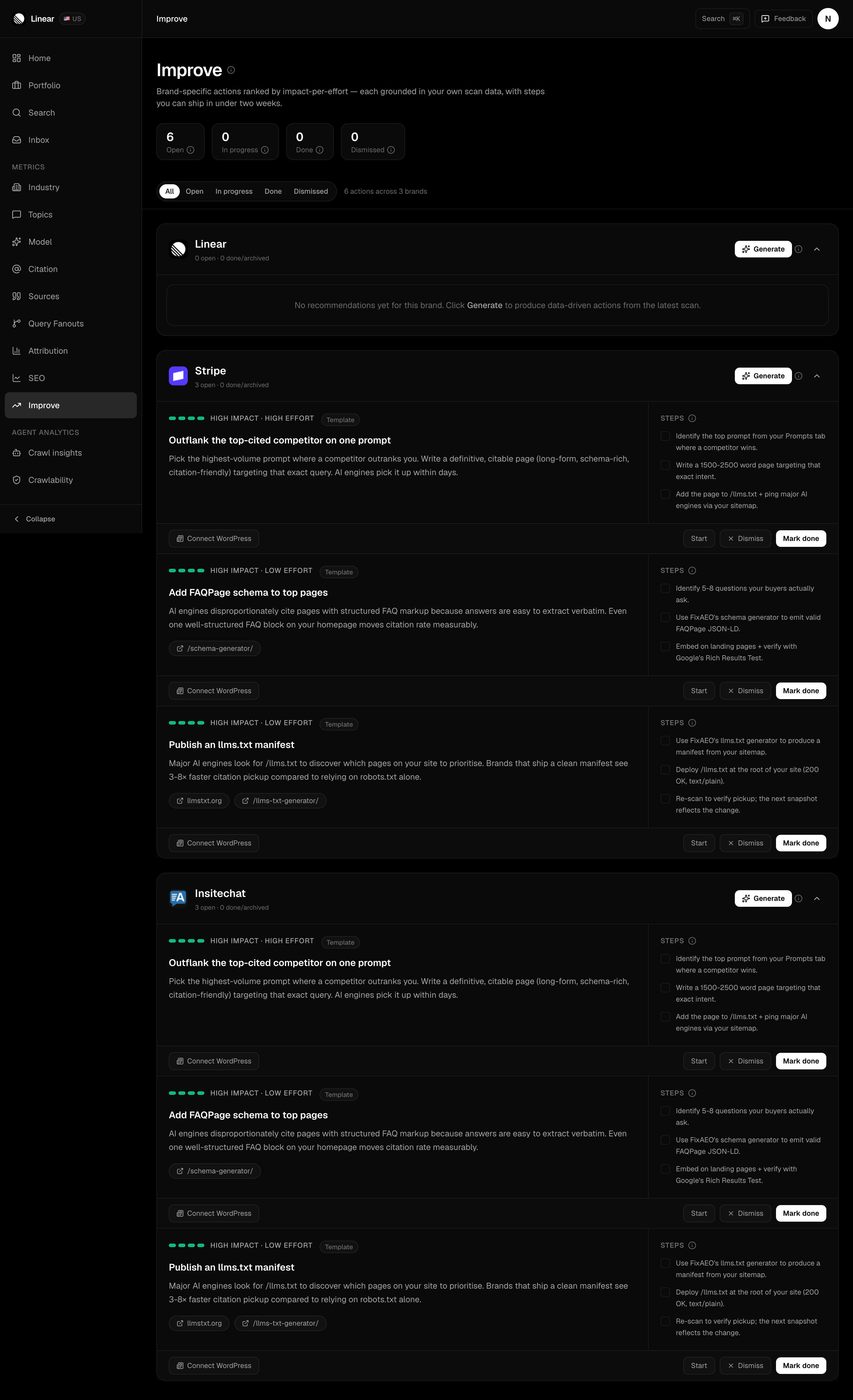
Every tracked brand gets its own block. A brand with no completed scans shows an empty block and a Generate button instead of cards.
Working the board
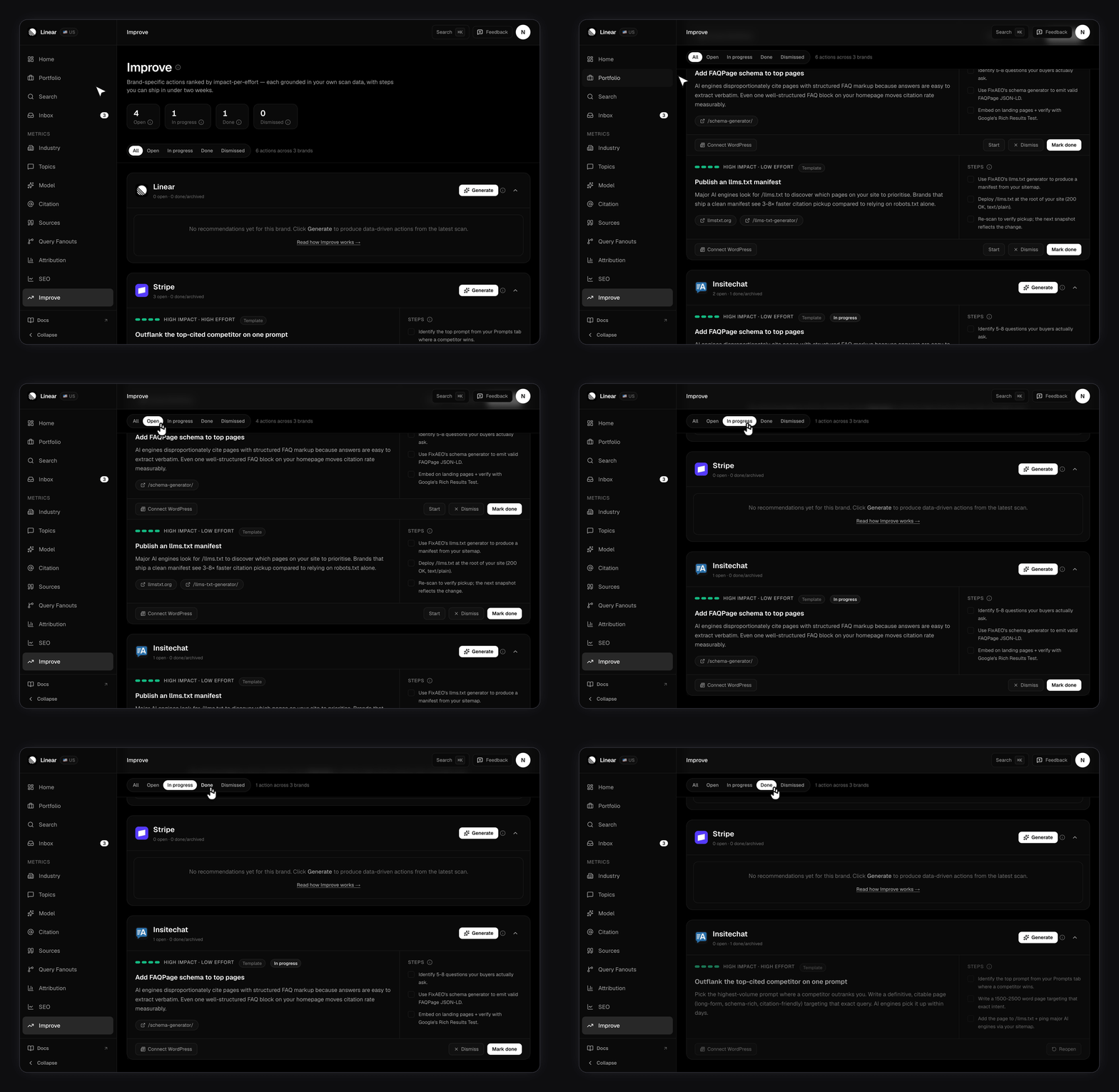
Four statuses, shown as counts at the top of the page and as filter pills below them.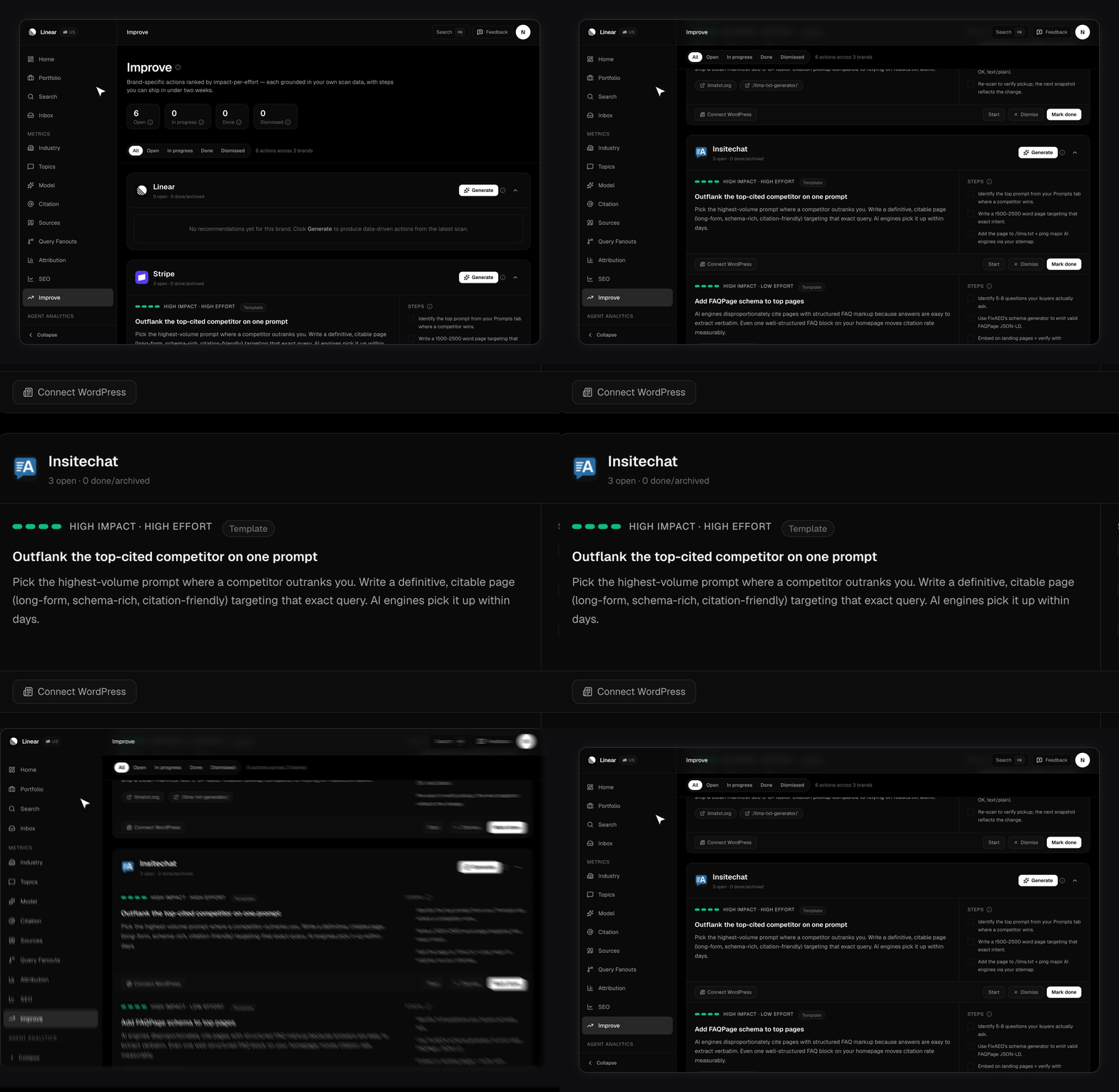
The tick boxes next to each step are a scratchpad for working through a card in one sitting, not a saved record of progress. The card’s status is what carries across sessions.
Does Improve refresh on its own?
Yes. FixAEO regenerates recommendations in the background for brands with real scan data, so the board stays current even for a brand you haven’t opened in a while. Pressing Generate yourself adds to the board rather than replacing it, and you won’t collect duplicates of a card you’re already working on.Turning a card into a draft
If you’ve connected a WordPress site, each card gets a Publish to WordPress button. It creates a draft post from that recommendation and links you to the WordPress editor. Nothing goes live until you publish it there. See WordPress.Why is my board empty?
Improve needs scan data to reason about. A brand with no completed scans gives the model nothing to say.- No brands yet? Start at Your brand profile.
- Brands but no scans? Scheduled scans start on a paid plan. See Plans and limits.
- Want sharper cards? Fill in the Knowledge tab. Advice grounded in your real products beats generic advice every time.