

robots.txt and tells you, crawler by crawler, whether it may fetch your site.
It’s the permission side of AI visibility. Agent analytics records the bots that actually arrived. This page tells you which ones you’ve asked to stay out — often without meaning to. Open Agent Analytics in the sidebar and switch to the Crawlability tab.
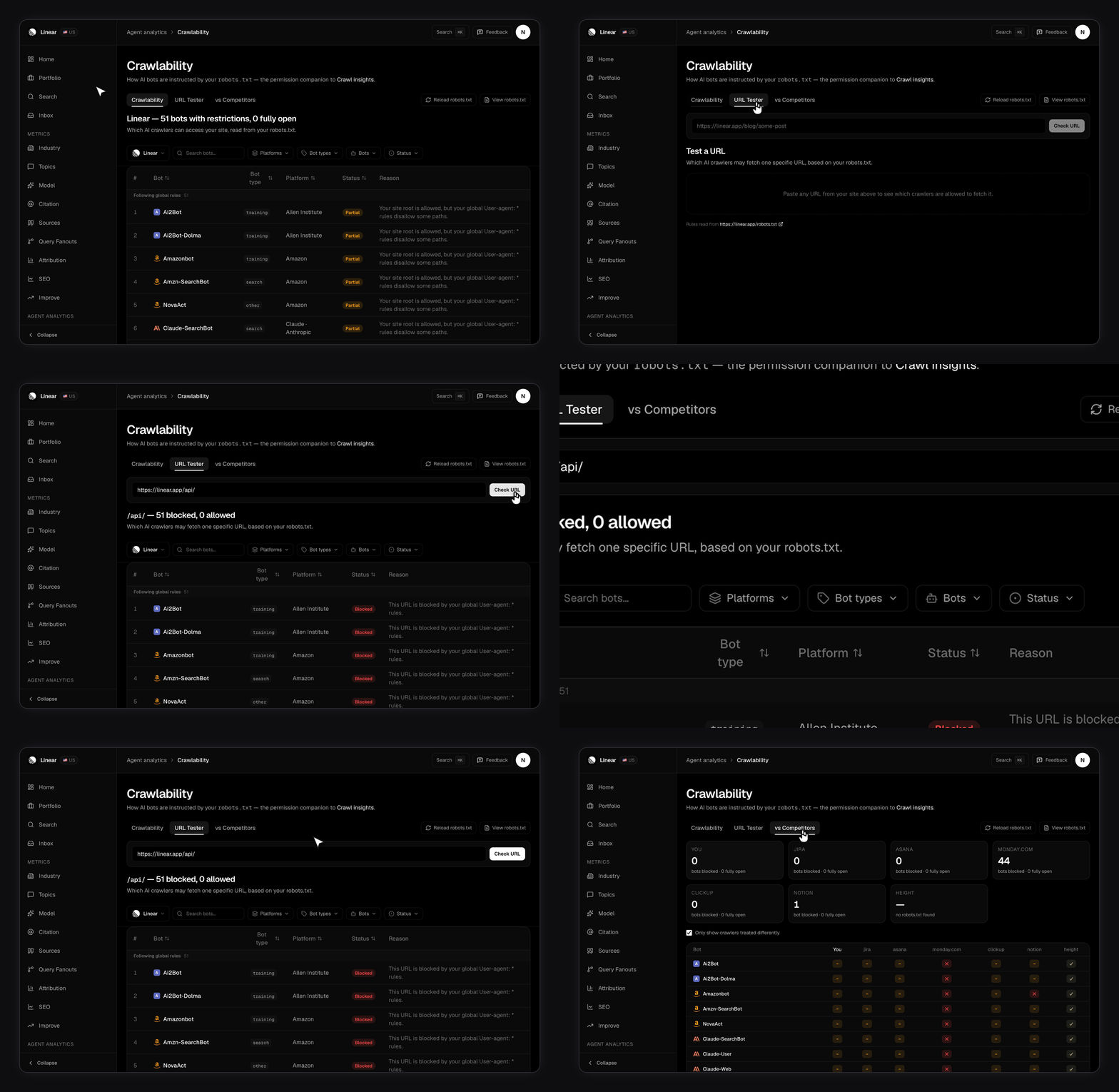
The page has three tabs: Crawlability, URL Tester, and vs Competitors. All three run against the same catalog of 51 crawler tokens, from GPTBot and ClaudeBot down to CCBot, Bytespider, and Baiduspider.
Are you blocking a crawler your competitors let in?
That’s the vs Competitors tab, and it’s the fastest thing on the page to act on. It builds a matrix: one row per crawler, one column per site. Your column comes first, then each tracked competitor. Every cell is a verdict —✓ allowed, ~ partial, ✕ blocked. Tiles above the matrix give each site a blocked count and a fully-open count.
Only show crawlers treated differently is ticked by default. Rows where every site agrees get hidden, because those rows have nothing to tell you. Untick it to see the full catalog.
Competitors come from your account-wide competitor list, not from this brand alone. See Competitors for how that list is built. Your own domain is filtered out, so you never appear as your own rival. The comparison covers up to eight competitors, and if you track more, a line above the matrix says how many are shown.
Why does the comparison count blocked, not restricted?
Because nearly every realrobots.txt disallows something under User-agent: *. Count anything non-open and almost every site scores the same, so the columns look identical and the comparison tells you nothing.
So the two views use different numbers on purpose:
- The Crawlability tab headline counts crawlers with any restriction — “your brand — N bots with restrictions, M fully open”. That’s the right lens for auditing your own file.
- The vs Competitors tiles count only crawlers that are blocked outright. That’s where sites genuinely differ.
The three verdicts
Partial only exists in the site-root view. A single URL is either allowed or blocked, so the URL Tester never returns it.
Which rule produced the verdict?
Rows sit under one of two headings, and that split is the actionable part. Explicitly mentioned means aUser-agent group in your file names that bot. You decided this.
Following global rules means no group names it, so your catch-all User-agent: * applies. That’s what your file happens to do to a crawler you’ve probably never thought about.
Every row also carries a Reason column — a plain sentence naming the group that decided it, like “Your site root is allowed, but your global User-agent: * rules disallow some paths.” Read that column rather than the group heading alone when a verdict surprises you. Matching follows the standard Robots Exclusion Protocol conventions, wildcards and precedence included, so Disallow: / plus Allow: /public/ behaves the way you’d expect.
Can you test one specific URL?
Yes — the URL Tester tab. Paste a full URL or a bare path and press Check URL. Only the path and query string are used. The host is ignored on purpose: the rules always come from this brand’srobots.txt, so pasting a competitor’s URL would give you a misleading answer. The result is the same table, re-evaluated for that one path. The headline switches to the path you tested, with its own blocked and allowed counts.
Reading the table
A filter bar pins itself under the header. It carries a search box plus four menus:- Platforms — the vendor behind the bot
- Bot types — Training, Search, User Query, Other
- Bots — the full list, searchable and grouped by type
- Status — Allowed, Partial, Blocked
What if you have no robots.txt?
The table is replaced by a short explanation instead of 51 identical Allowed rows. Under the Robots Exclusion Protocol, no file means no rules, so every crawler is allowed by default.What this page won’t tell you
Three honest limits. A verdict is a request, not enforcement. Your file states a preference. Whether a crawler respects it is a separate question, and Agent analytics is the only record of what actually arrived. A competitor whose server couldn’t be reached reads as wide open. If their server times out, their whole column fills with green ticks. The tile above that column is the tell — it shows a dash and “no robots.txt found” instead of a number. Allowed is not the same as visible. Letting every crawler in is the floor, not the goal. Once the doors are open, Sources shows what the engines chose to read and Improve turns that into work.Crawlability isn’t plan-gated. Crawl insights needs a paid plan to capture traffic, but the robots.txt check runs on every plan, including Free. See Plans and limits.