

When are alerts checked?
Only right after a scan, so a rule can’t fire on a day your brand wasn’t scanned. Alerts therefore need a plan with scheduled scans. Cadence by plan is on Plans and limits. Each check compares your newest numbers against where the brand stood at the start of the past week. A brand on its very first scan has nothing to compare against yet, so change-based rules start working once there’s a few days of history.What can trigger an alert?
Five rule types, picked from the Kind dropdown when you create a rule.
Thresholds for drop, rise, and surge are percentage points, not percent change. A move from 40% to 30% is a 10-point drop.
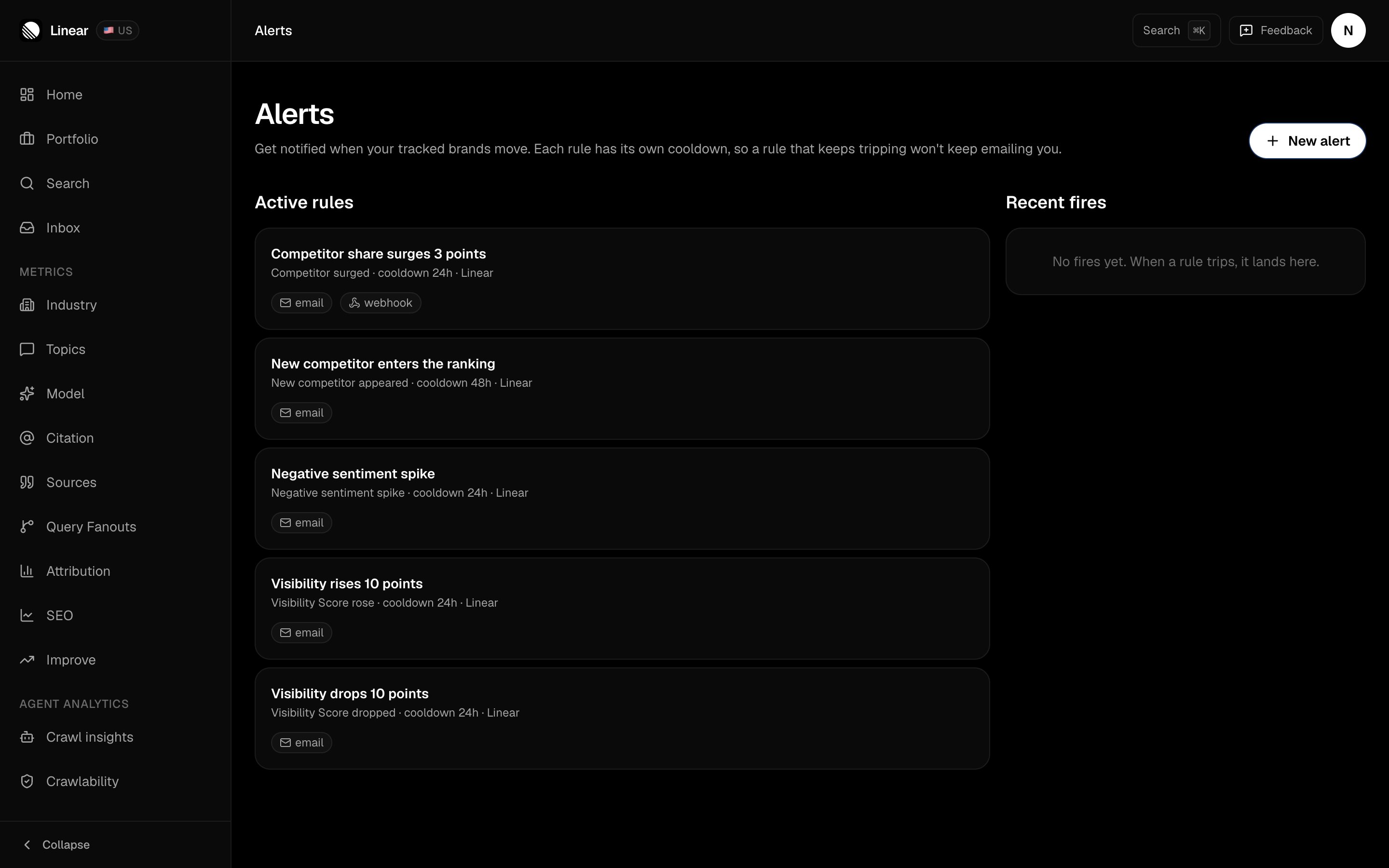
Each card carries its cooldown and the brand it watches. Recent fires sits empty here because none of these rules has tripped yet — that panel fills in only after a scan crosses a threshold.
Creating a rule
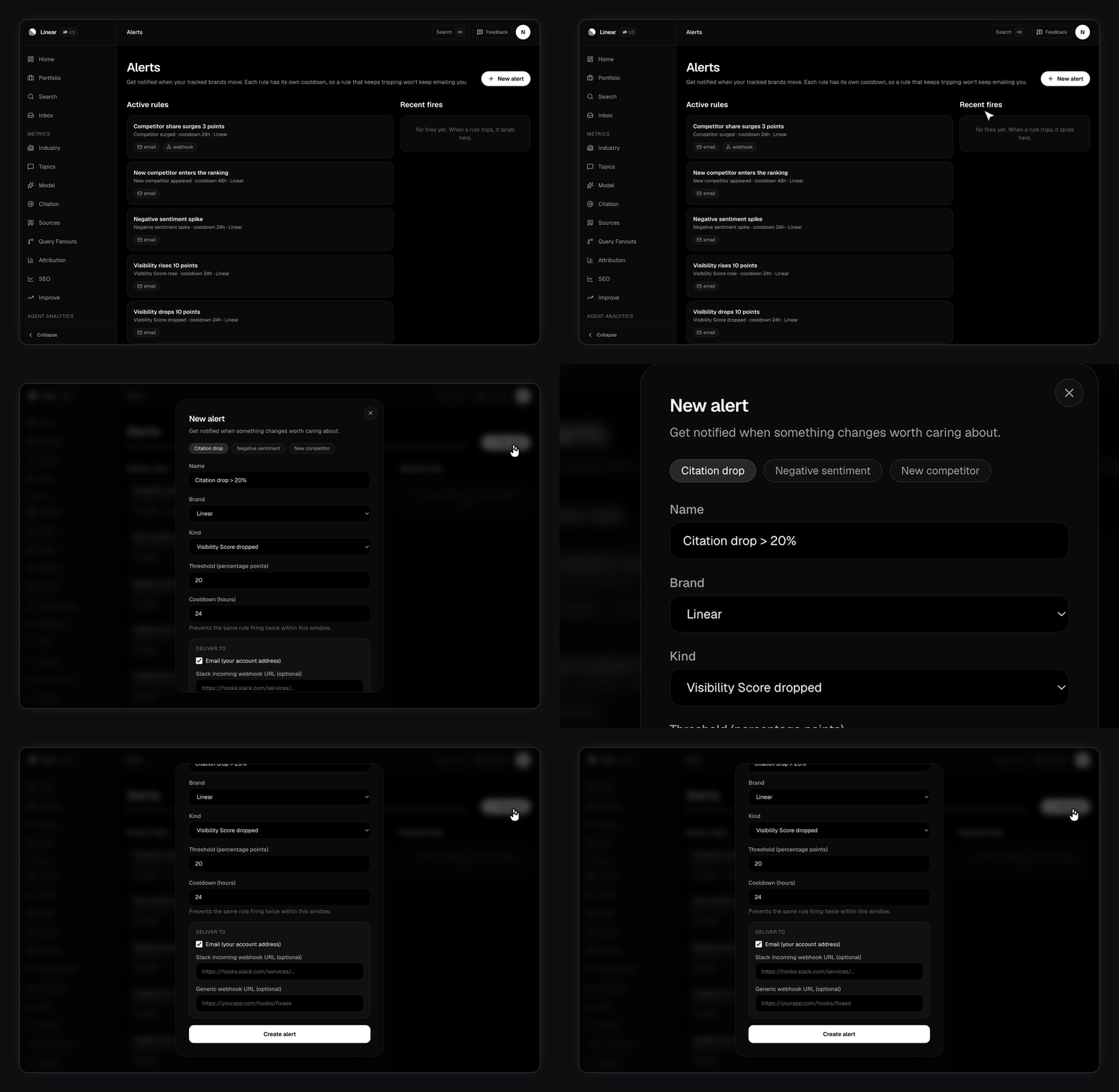
Click New alert on the Alerts page. Three template chips prefill a sensible rule: Citation drop, Negative sentiment, and New competitor. Then set the rest.1
Name it
The name travels with every fired event, so make it readable.
2
Pick the kind and threshold
The threshold field changes with the kind. Percentage points for drop, rise, and surge. A plain count for sentiment.
3
Set a cooldown
How long the rule stays quiet after it fires. Between 1 and 168 hours, 24 by default. This is what keeps one bad week from filling your inbox.
4
Choose delivery
Email is on by default. Paste a Slack webhook URL, a generic webhook URL, or both.
How are alerts delivered?
Email goes to your account address. One message per fired event, with a one-line summary and a link back to the app.These alert emails are switched on and off on the rule itself, right here in the delivery step. They are separate from the account-wide email categories in Settings → Notifications. Turning a category off there won’t quiet a rule — switch its email delivery off on the rule instead.
https://hooks.slack.com/services/... URL into the rule.
Webhook posts JSON to any URL you control. The body carries event_id, rule_id, rule_name, rule_kind, fired_at, a summary string, and the full payload with the before and after numbers. A rule can also carry a signing secret. Set one and every request gains an X-Fixaeo-Signature header holding sha256= plus an HMAC-SHA256 of the body, so you can verify the sender.
A failure on one channel doesn’t stop the others, and the record of which channels delivered travels with the event.