> ## Documentation Index
> Fetch the complete documentation index at: https://docs.fixaeo.com/llms.txt
> Use this file to discover all available pages before exploring further.
# Alerts
> Get told when a tracked brand moves, without checking the dashboard.
Alerts watch your scan results and message you when something crosses a line you set.
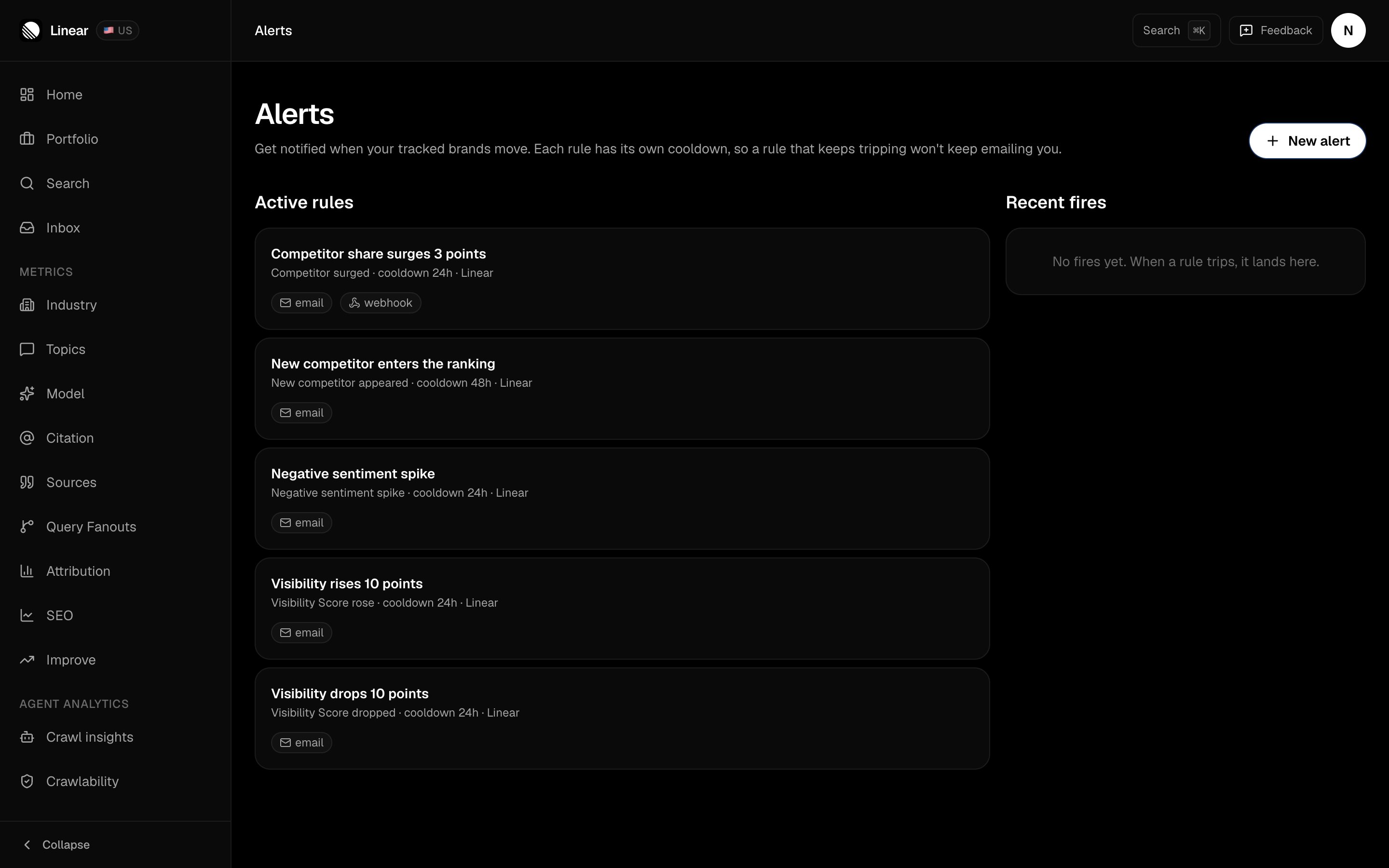
An alert is a rule on your account. After every scan writes a new daily snapshot, FixAEO checks your active rules against it. Any rule that trips records an event and sends it to the channels you picked: email, Slack, or your own webhook.
## When are alerts checked?
Only right after a scan, so a rule can't fire on a day your brand wasn't scanned. Alerts therefore need a plan with scheduled scans. Cadence by plan is on [Plans and limits](/plans-and-limits).
Each check compares your newest numbers against where the brand stood at the start of the past week. A brand on its very first scan has nothing to compare against yet, so change-based rules start working once there's a few days of history.
## What can trigger an alert?
Five rule types, picked from the **Kind** dropdown when you create a rule.
| Rule | Fires when | Default |
| --------------------------------- | ------------------------------------------------------------------------------------------------------------- | ---------- |
| Visibility Score dropped | Your [Visibility Score](/metrics/visibility-score) falls by at least the threshold against the baseline | 20 points |
| Visibility Score rose | Your Visibility Score climbs by at least the threshold | 10 points |
| Negative sentiment count exceeded | Negative mentions in the latest snapshot reach the threshold count | 3 mentions |
| New competitor appeared | A brand shows up in your ranking that wasn't there before, and holds at least a minimum share of all mentions | 1% share |
| A competitor surged | A named competitor's share of voice climbs by at least the threshold | 15 points |
Thresholds for drop, rise, and surge are percentage points, not percent change. A move from 40% to 30% is a 10-point drop.
 To watch one named rival rather than the whole ranking, [Industry benchmarks](/industry) is the better surface — it ranks every brand in your category side by side.
## Creating a rule
Click **New alert** on the Alerts page. Three template chips prefill a sensible rule: Citation drop, Negative sentiment, and New competitor. Then set the rest.
The name travels with every fired event, so make it readable.
The threshold field changes with the kind. Percentage points for drop, rise, and surge. A plain count for sentiment.
How long the rule stays quiet after it fires. Between 1 and 168 hours, 24 by default. This is what keeps one bad week from filling your inbox.
Email is on by default. Paste a Slack webhook URL, a generic webhook URL, or both.
To change a threshold later, delete the rule and create it again.
## How are alerts delivered?
**Email** goes to your account address. One message per fired event, with a one-line summary and a link back to the app.
**Slack** uses an incoming webhook. Create one in your Slack admin and paste the `https://hooks.slack.com/services/...` URL into the rule.
**Webhook** posts JSON to any URL you control. The body carries `event_id`, `rule_id`, `rule_name`, `rule_kind`, `fired_at`, a `summary` string, and the full `payload` with the before and after numbers. A rule can also carry a signing secret. Set one and every request gains an `X-Fixaeo-Signature` header holding `sha256=` plus an HMAC-SHA256 of the body, so you can verify the sender.
A failure on one channel doesn't stop the others, and the record of which channels delivered travels with the event.
## Where do fired alerts go?
The Alerts page shows your 10 most recent fires in a side panel, with a badge for each channel that delivered. Your full history lives in **Inbox**, where you can filter by type and by brand, mark items read, and page back through older events.
Deleting a rule stops it firing immediately. Past events stay in the Inbox, so your history stays intact.
## What should you set up first?
One drop rule per brand at 20 points, on email. That's the alert that tells you something broke. Add a sentiment rule if reviews move fast in your category, and a new-competitor rule if it's crowded. See [Tracking competitors](/competitors) for the pinning side of that.
When an alert fires, [Improve](/improve) is usually the next stop. It reads the same scan data and turns the drop into work you can ship.
To watch one named rival rather than the whole ranking, [Industry benchmarks](/industry) is the better surface — it ranks every brand in your category side by side.
## Creating a rule
Click **New alert** on the Alerts page. Three template chips prefill a sensible rule: Citation drop, Negative sentiment, and New competitor. Then set the rest.
The name travels with every fired event, so make it readable.
The threshold field changes with the kind. Percentage points for drop, rise, and surge. A plain count for sentiment.
How long the rule stays quiet after it fires. Between 1 and 168 hours, 24 by default. This is what keeps one bad week from filling your inbox.
Email is on by default. Paste a Slack webhook URL, a generic webhook URL, or both.
To change a threshold later, delete the rule and create it again.
## How are alerts delivered?
**Email** goes to your account address. One message per fired event, with a one-line summary and a link back to the app.
**Slack** uses an incoming webhook. Create one in your Slack admin and paste the `https://hooks.slack.com/services/...` URL into the rule.
**Webhook** posts JSON to any URL you control. The body carries `event_id`, `rule_id`, `rule_name`, `rule_kind`, `fired_at`, a `summary` string, and the full `payload` with the before and after numbers. A rule can also carry a signing secret. Set one and every request gains an `X-Fixaeo-Signature` header holding `sha256=` plus an HMAC-SHA256 of the body, so you can verify the sender.
A failure on one channel doesn't stop the others, and the record of which channels delivered travels with the event.
## Where do fired alerts go?
The Alerts page shows your 10 most recent fires in a side panel, with a badge for each channel that delivered. Your full history lives in **Inbox**, where you can filter by type and by brand, mark items read, and page back through older events.
Deleting a rule stops it firing immediately. Past events stay in the Inbox, so your history stays intact.
## What should you set up first?
One drop rule per brand at 20 points, on email. That's the alert that tells you something broke. Add a sentiment rule if reviews move fast in your category, and a new-competitor rule if it's crowded. See [Tracking competitors](/competitors) for the pinning side of that.
When an alert fires, [Improve](/improve) is usually the next stop. It reads the same scan data and turns the drop into work you can ship.